Guide
Browser game not loading? Check it before clearing data
Troubleshoot blank screens, loading failures and unresponsive controls. Compare browsers and connections, preserve local progress and report useful details.
If a browser game stays blank or stops loading, preserve any save or export that the game still lets you access. Reloading can end an unsaved round. Then reload once, try a different game, and compare the same page in another browser while keeping your original profile and site data intact. Clearing cookies or all browsing data can remove local progress and sign you out; it should not be the first experiment.
Use the symptom below to choose a starting point. A game that runs but ignores a key needs an input check, while a page whose files never arrive needs a loading check.
Identify what has actually stopped
| What you see | First useful comparison | What the result tells you |
|---|---|---|
| The entire site fails to open | Open an unrelated website, then the game's normal home page | Helps separate a wider connection problem from one site or address |
| The page loads but one game remains blank | Try another game on the same site | Narrows the problem to a game or a shared player component |
| A loading indicator keeps moving or stops | Reload once, then compare another browser | Tests whether the failure repeats in the current browser setup |
| The game is visible but does not respond | Click or tap inside the game, check its displayed controls and Resume button | Separates input focus or pause from a failure to load |
| Only 3D games fail | Compare a simple 2D game and note any WebGL error | Gives support a more specific graphics symptom |
Do not read a successful comparison as a final diagnosis. A second browser uses different extensions, settings and storage, so it narrows the search without proving which difference caused the failure.
Reload without erasing saved progress
Return to the game's normal page and reload once. If you followed an old bookmark or a shared launch link, open the current game page from the site's catalogue instead. A launch address can behave differently from the normal page that starts it.
On a desktop, try the browser's ordinary Reload control. If the page is stuck and you are not in an active round, close that game tab and open the normal page again. Restart the browser after saving work in other tabs, and install an available browser update through its normal menu.
A reload can still end an unsaved round. If the game offers a save or export function and it remains usable, use it before restarting. An account login does not by itself prove that this particular game synchronizes its progress.
Compare a second game, browser and connection
Make one change at a time and record the outcome:
- In the original browser, open a different game on the same site.
- In a second current browser, open the failing game's normal page. Treat an empty save slot there as a different storage environment, not proof that the original save has disappeared.
- If available, try your own alternative connection, such as mobile data, and note any data cost before downloading a large game.
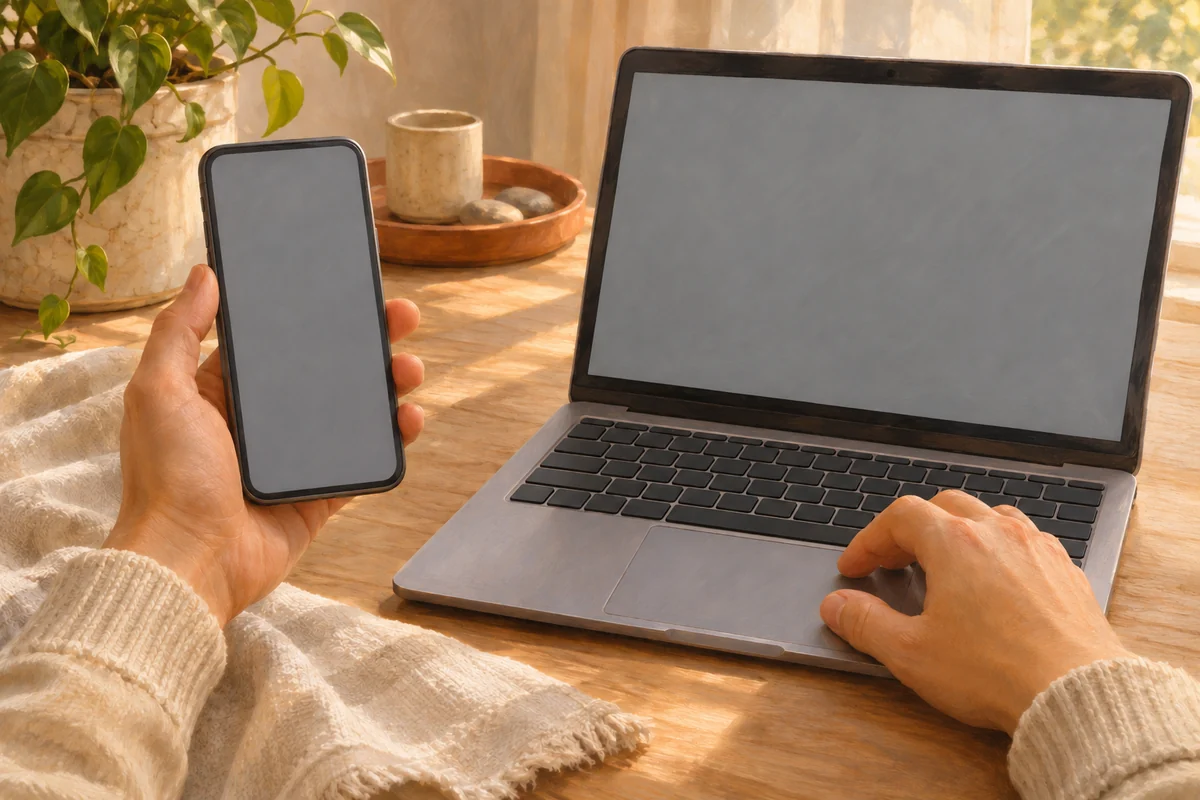
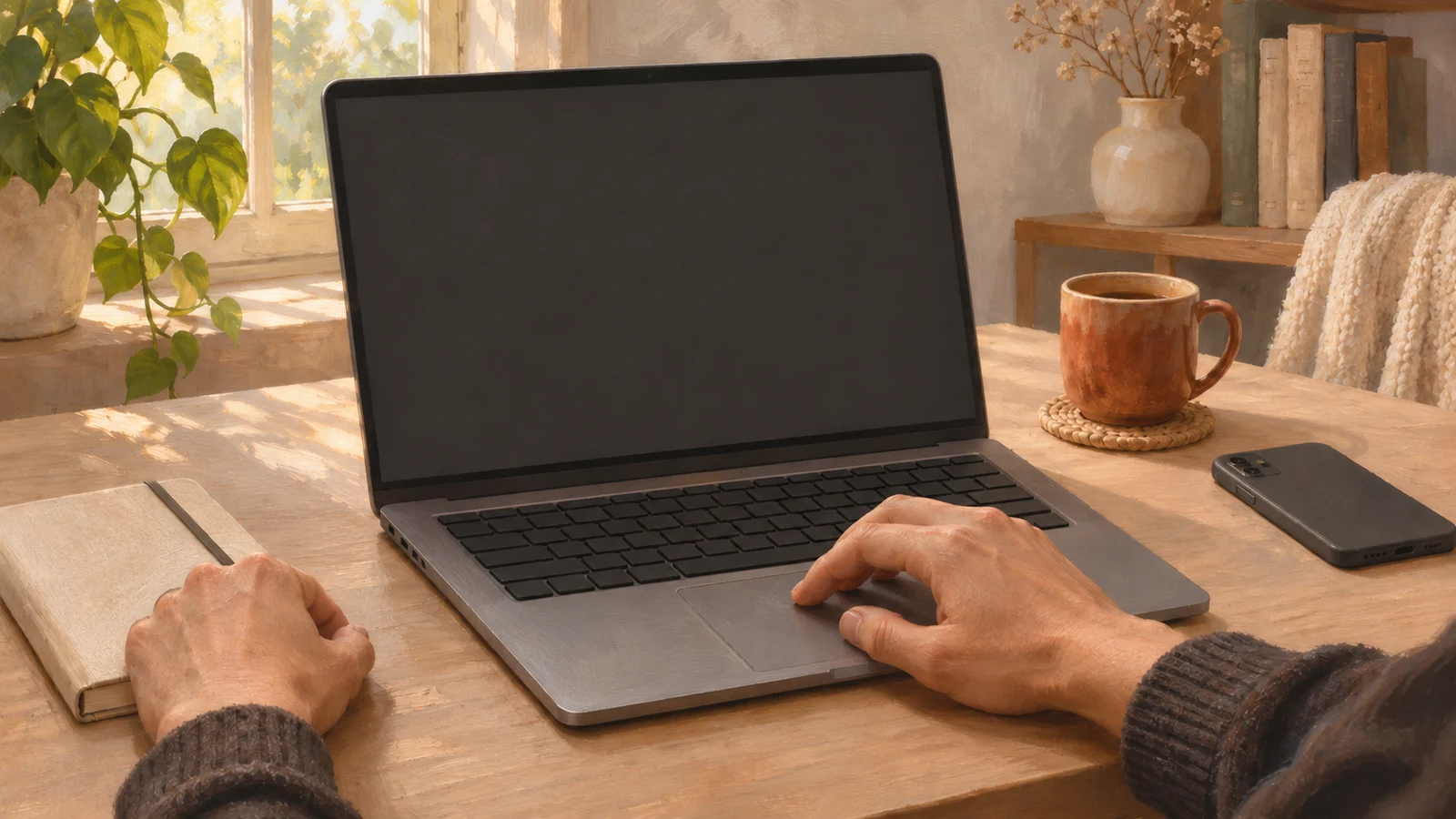
Original illustration of a device comparison; the screens do not reproduce a game or browser interface.
If several websites fail, use your browser's connection troubleshooting rather than repeatedly resetting the game. If one game fails across browsers while other games work, send its exact URL and the comparison results to the site. On a managed school or work network, ask the administrator about an observed block; use the approved service and network settings.
Test extensions without changing every website
If the game works in another browser, investigate differences in the original browser. Content blockers, script controls and privacy extensions can affect embedded games, but a blank screen alone does not identify a particular extension as the cause.
In desktop Edge, open Extensions using the puzzle-piece icon to the right of the address bar. Microsoft's website-loading guidance recommends temporarily testing without extensions. Prefer an extension's per-site control when it offers one. Test one change, reload, record the result and restore the setting afterward; a browser-wide extension switch can also affect other tabs. Avoid turning off all protection for every website or installing an “optimizer” to make one game start.
A private window can be a useful separate test, but it is not an identical copy of your normal session. Stored data differs from your normal session, and the game may show a fresh save. Return to the original normal window to check your existing progress.
Distinguish graphics trouble from a paused game
If menus appear but the game canvas stays blank, record any visible WebGL, graphics or unsupported-browser message exactly. Different games use different rendering systems: a successful 2D game does not establish that the browser can run a particular 3D title.
Update the browser first, then send the exact graphics message and the successful 2D comparison to the game's support team. Let them confirm that title's requirements before changing graphics settings or drivers. On a managed device, pass the report to the administrator. Do not force experimental graphics flags as a general repair.
If the game is already drawing and its timer is stopped, look for Pause or Resume. If the timer moves but keyboard input does nothing, click inside the game and check the actual control instructions. Some games use dragging or taps instead of arrow keys. For example, Signal Bloom's route guide separates touch linking from keyboard undo; an unavailable touch undo button is a control limitation, not a failed download.
Preserve local data before any reset
MDN's browser-storage reference explains that website data can be stored locally and deleted through browser settings. Before clearing site data, check the game's own save, export or account-sync instructions. If there is no verified backup or sync method, stop short of deleting its storage and contact support first. A screenshot records what you saw; it is not a restorable save file.
Browser data categories are different. Cached files, cookies and website storage are not interchangeable names for the same thing. If official support recommends a cache-only test, read the browser's selected categories carefully and leave cookies and site data unchecked unless you have deliberately chosen to reset them. Do not use a broad “clear everything” action for a single failing game.
This is especially relevant for games that store progress in the current browser. A fresh browser, private window or different device may load successfully while showing none of that local progress. Keep the original profile until you have checked how the game stores its save.
Send support a reproducible report

Original illustration: write down the failure and comparison results before changing more settings.
Include these details in a support request:
| Detail | What to record |
|---|---|
| Game | Its normal page URL and name |
| Environment | Device model, operating system, browser name and version |
| Failure point | Before the page, after Play, during loading, or after the game appears |
| Message | Exact visible error text, with a screenshot if useful |
| Comparisons | Which other game, browser or connection worked or failed |
| Save risk | Whether progress is local, exported or confirmed synced; say unknown if you do not know |
Leave passwords, payment details and session tokens out of the report. If support asks for browser logs, review them for account data before sharing.
Browser help and storage references
Desktop Edge guidance and MDN storage documentation checked on 4 November 2026. Use your browser's own instructions for the controls available on your device:
On Malaguo, return to the game catalogue to compare another game, then use Contact Malaguo to report the normal page that fails. This guide covers browser troubleshooting rather than a promise that every game supports every device.